
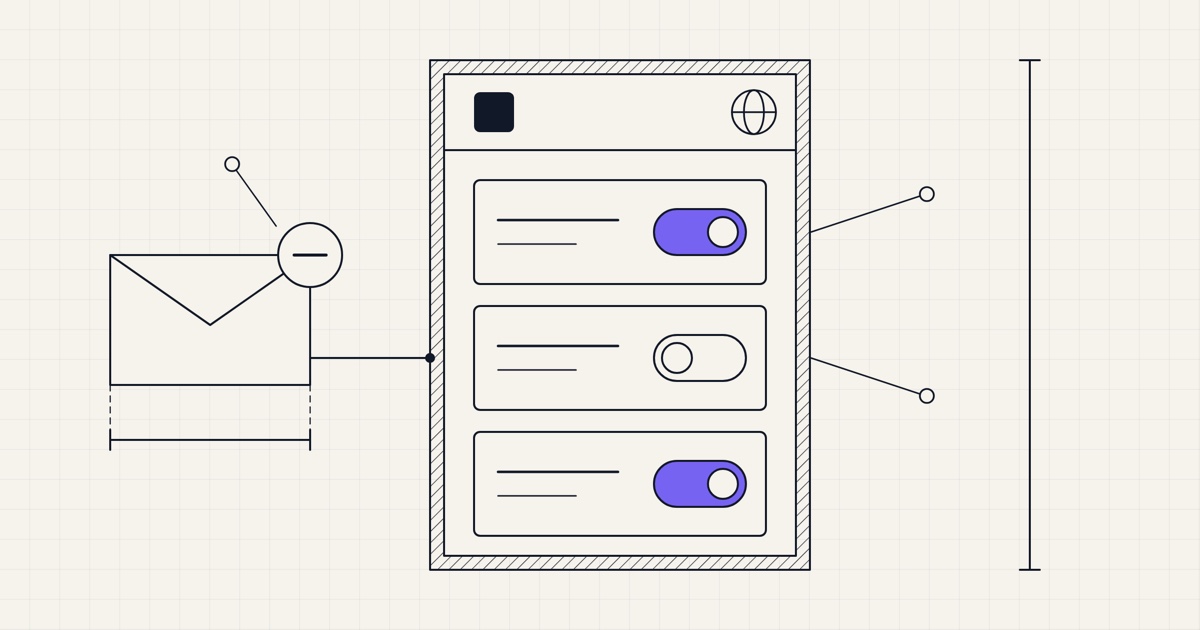
Since Notifuse 3, each of your contacts has a notification center, a page of their own where they pick the lists they get, unsubscribe and choose their language. Notifuse hosts it and puts the links to it in your emails, so you have nothing to build and the contact needs no account or password.
Signed links
Every link to the page carries the contact's email address, your workspace ID and a signature, email_hmac, computed from the address with your workspace's secret key. Without a valid signature the page shows nothing and changes nothing, and the key never leaves the server. Your templates reach the page with three Liquid variables:
{{ notification_center_url }}opens the contact's preferences. It is filled in every email sent to a contact, transactional ones included.{{ unsubscribe_url }}unsubscribes the contact from the list the email was sent for as soon as the page opens, then shows their other lists. It is filled in emails sent for a list: broadcasts, automation emails and test emails sent for a list.{{ confirm_subscription_url }}confirms a double opt-in, in the list's confirmation email.
The unsubscribe link also carries the email's ID, so the unsubscribe counts in that broadcast's statistics. In the template editor's preview, the links open a preview page that changes nothing.
The page
Your logo and a language menu sit at the top. Below them, the page greets the contact by first name, or by address, and shows one card per list with its name, its description and a Subscribe or Unsubscribe button. A click applies at once and shows a short confirmation. If the address bounced or was reported as spam on a list, the card shows that status and the page can't change it.
Take a customer who wants your product news but not the weekly newsletter. They open the preferences link in the newsletter's footer, click Unsubscribe on the newsletter and leave Product updates as it is. Next week's newsletter skips them; the next release note still reaches them.
Private lists
Every public list of the workspace appears on the page, whether the contact is on it or not, so people can also join lists they never signed up for. A private list, such as your beta testers, appears only to the contacts on it, active or waiting to confirm, and they can only leave it. Once they do, it disappears from their page, and putting them back is up to you, from the console or the lists.subscribe API. A signed link never adds anyone to a private list.
Double opt-in
A contact who joins a public list from the page is subscribed at once: the signed link already shows the address is theirs. One who comes back to a list they left is set to pending instead, and the list's double opt-in email, when the list has one, asks them to confirm. Its {{ confirm_subscription_url }} button opens the page, which confirms the subscription and says so.
Gmail's button
Gmail, Yahoo, Apple Mail and Outlook show their own Unsubscribe button next to the sender when an email carries the List-Unsubscribe and List-Unsubscribe-Post headers of RFC 8058. Notifuse adds both to broadcasts and to automation emails sent for a list, and since Notifuse 44 to test emails sent for a list, whatever your email provider. What happens next depends on the mail client:
In a client that supports one-click, the button sends a POST to the header's link, and the contact is unsubscribed from that list without leaving their inbox. Notifuse requires the
List-Unsubscribe=One-Clicktoken that every one-click request carries, in any of the encodings mail providers use (multipart/form-dataincluded since Notifuse 42). A security scanner firing a bare POST therefore unsubscribes nobody.A mail client that doesn't offer one-click opens the link in a browser instead, and so does a person who copies it. Since Notifuse 42, that visit lands on the notification center, which names the list and asks "Do you want to stop receiving emails from this list?" before changing anything, because anti-spam filters open these links on their own.
A broadcast that also goes to the list's unsubscribed contacts, for a security or legal notice, carries no header and so no button, and neither do transactional emails. Mail clients offer one-click only when the email's DKIM signature covers both headers, which your email provider signs.
Languages
The page speaks 11 languages: English, French, Spanish, German, Portuguese, Polish, Russian, Arabic, Hindi, Chinese and Japanese. It opens in the browser's language, or in English when that one isn't among them, and the menu switches it. The language the contact picks is saved on their profile, and Notifuse uses it to send them the matching translation of your templates.
A contact with no language yet gets their browser's, and their timezone is updated, on their first click or key press on the page. Opening the page alone writes nothing, so email security scanners that open links in a real browser don't change your contacts.
Tracking choice
Since Notifuse 43, the page also says in one line whether email tracking is on for the contact, with a dialog to change it: our post on email tracking consent explains it.
Your brand
The page takes the logo and the website URL from Settings → General: the logo heads the page and becomes the tab's icon, and the logo, the title and the footer link to your website. Set a Custom domain on the same page, such as https://email.example.com pointing to your Notifuse instance, and the links to the page and the List-Unsubscribe header use your domain instead of Notifuse's. The page's code, in the notification_center/ folder of the repository, is MIT-licensed, so you can fork it and restyle it.
Not yet
Beyond the logo and the website link, you can't change the page's colours, fonts or texts unless you fork it.
The page works one list at a time, with no button to unsubscribe from every list at once.
The page doesn't remember the language and opens in the browser's language every time. The language the contact chose is used only for your emails.
The links come only from your emails. The key that signs them stays on the server, so your application can't build one for its account settings.
Getting started
Put {{ unsubscribe_url }} and {{ notification_center_url }} in the footer of your marketing templates, make public the lists contacts may join on their own, and set your logo, website URL and custom domain in Settings → General. The notification center documentation describes the page and the mail client button, the lists documentation covers public and private lists and double opt-in, the templates documentation lists the variables, and the workspaces documentation explains the custom domain.